DietPower Help
At a Glance
Miscellaneous options are housekeeping functions that you can turn on or off. To do so, click Options > Miscellaneous at the top of your Home Screen.
In Detail
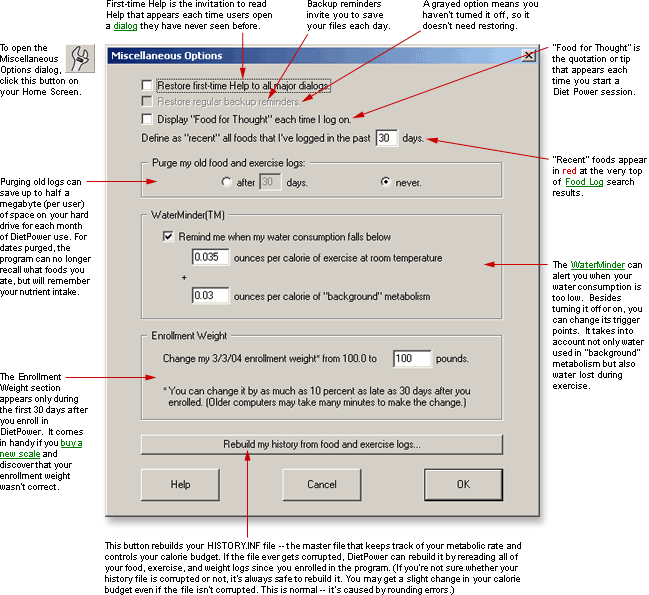
The Miscellaneous Options are changes you can make in your first-time experience with each major dialog, in your Food Log's memory, in the storage of old records on your hard drive, and in your enrollment weight. They also include your WaterMinder™ setup and a special utility for rebuilding your diet history file if it ever gets corrupted.
To open the Miscellaneous Options:
From your Home Screen,
open the Options Menu by clicking the word Options.
Choose "Miscellaneous Options."
Here are the options and how they work:
"Restore first-time Help to all major dialogs."
Checking this box will make each of Diet Power's main dialogs behave as it did the first time you used it: A message will pop up inviting you to read the dialog's Help topic. Once you've either read the topic or clicked "Skip Help," the invitation won't appear again—unless you go back to the Miscellaneous Options and again check the "Restore first-time Help" box.
"Restore regular backup reminders."
Check this box to restore Diet Power's once-a-day reminder to make a backup of your records via the Travel Bag.
"Display 'Food for Thought' each time I log on."
Food for Thought is the quotation or tip that Diet Power displays each time you begin a new session. Checking this box will restore this feature if you've turned it off.
"Recent Foods" Definition
To make frequently-logged foods easier to find, Diet Power displays in red every food you've logged recently. The default is the past 30 days, but you can enter any period you like.
"Purge my old food and exercise logs"
Here there are two choices:
"Never." If you click this button (the
default setting), all of the foods and exercises you log will be saved
indefinitely. (Logs older than 90 days won't be fully copied to a travel
disk, however. See Travel
Bag, Copying Records to or from the.)
This means you'll be able to review the logs for any date since you began
using Diet Power. The only drawback is that storing them will require
a little more hard-drive space. For a typical user, the logs grow at a
rate of 200 kilobytes a month, or about two megabytes per year.
"After [ ] days." If you fill in the blank and click this button, Diet Power will erase each day's food and exercise logs as soon as the logs reach the age you specify. This won't delete any quantitative records—you'll still be able to review your calorie budget, nutrient history, and calories burned in exercise for every date since you began using Diet Power. You just won't be able to recall the names of items on purged dates.
Purging is retroactive. That is, if you've been keeping logs for, say, 100 days and on the 100th day you set a "purge after 14 days" option, Diet Power will erase the logs for your first 86 days, leaving only those for the past 14. (A purge order isn't carried out, however, until you close your work session and log on again. Hence, you can change your mind anytime before the session ends.)
Purging won't affect other people's files—this option is specific to each user. Nor will it erase any of your calendar notes—those are stored indefinitely.
WaterMinder™ Setup
Here's where you tell Diet Power whether you want to use the WaterMinder™, and if so, when to give you water alerts. For details, see WaterMinder™.
Changing Your Enrollment Weight
This section appears only during the first 30 days after you enroll. It lets you change your enrollment weight by as much as 10 percent. When you do so, the change cascades into all records you created since enrollment. (On slow computers, this can take many minutes.)
"Rebuild My History File from Food and Exercise Logs"
This button is for recreating your HISTORY.INF file—the master file that keeps track of your metabolic rate and controls your calorie budget.
Normally, Diet Power updates the history file every day by consulting the previous day's food and exercise logs. (Each log is a separate file beginning with the day's date and ending with .FD or .EXR.) If the history file gets corrupted, however, the program must rebuild the file by rereading all the logs since you enrolled in Diet Power.
(If you're not sure whether your history file is corrupted or not, it's always safe to rebuild it. You may get a slight change in your calorie budget even if the file hasn't been corrupted. This is normal—it results from rounding errors.)
To rebuild the file, click the Continue button. The process may take several minutes if you've been enrolled in Diet Power for a long time.
To close the Miscellaneous Options dialog:
If you want to save your changes, click OK or press the Enter key.
If you'd rather discard your changes, click Cancel or press the Escape key. Diet Power will put all three settings back where they were and return you to the Home Screen.
Got a Suggestion for This Page?
Last Modified: 7/1/07